Passkeys in 2026: The End of Passwords, and How to Switch
Passkeys let your device sign you in with cryptography instead of a secret you can leak. Here is how they work, where to store them, how recovery really behaves when you lose a phone, and the mistakes that quietly lock people out.


TL;DR: Passkeys sign you in with a private key held on your device and unlocked by your face, fingerprint, or PIN. They resist phishing, breaches, and replay attacks. Add them to your email, password manager, and bank first — then test recovery on a second device before you delete anything.
What is a passkey, in plain English?
A passkey is a pair of cryptographic keys your device creates when you register with a website or app: the public key goes to the service, and the private key never leaves your device or your encrypted keychain. When you sign in, the service sends a one-time challenge, your device signs it with the private key, and you approve with Face ID, Touch ID, Windows Hello, or a device PIN.
The standard behind this is FIDO2, paired with the W3C's WebAuthn browser specification. Both are open, and both are now implemented in iOS, Android, macOS, Windows, ChromeOS, Chrome, Safari, Edge, and Firefox. That is why a passkey created on an iPhone can be used to sign in on a Windows laptop — the plumbing is shared even when the ecosystems are not.
If you want the conceptual walkthrough rather than the setup plan, our companion piece on how passkeys work and what they replace goes deeper on the cryptography.
Why are passwords finally being phased out?
Passwords fail for a structural reason: they are shared secrets. You have to send yours to a server, which has to store something derived from it, and a convincing fake login page can collect it just as easily as the real one. Industry breach analyses consistently put stolen or weak credentials near the top of the causes of confirmed intrusions, and phishing remains one of the most common initial-access techniques attackers use.
Passkeys remove the shared secret. Three properties do the heavy lifting:
- Phishing-resistant. A passkey is cryptographically bound to the exact domain it was created for. A look-alike site at a near-identical address simply cannot invoke it, no matter how persuasive the email.
- Breach-resistant. Servers store only public keys. A leaked database gives an attacker nothing they can sign in with.
- Replay-resistant. Every sign-in uses a fresh challenge, so captured network traffic cannot be replayed later.
One honest caveat that most articles skip: adding a passkey does not automatically remove the password. If the account still accepts a password plus an SMS code as a fallback, an attacker can ignore your passkey entirely and phish the weaker path. Passkeys only deliver their full benefit once the legacy route is closed or tightly restricted.
What does signing in with a passkey actually feel like?
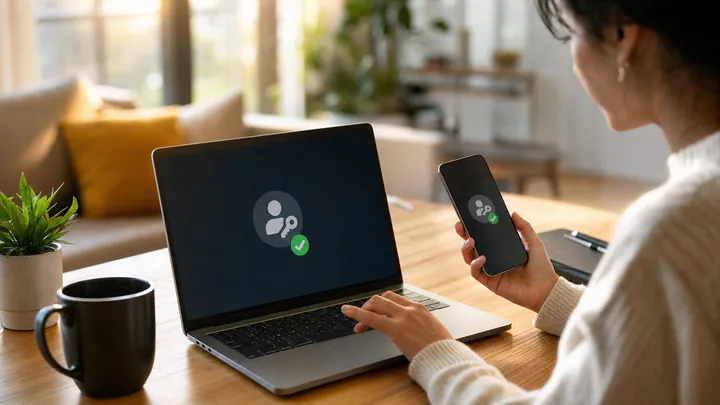
Boring — which is the point. You tap "Sign in," your device asks for a biometric or PIN, and you are in. No password field, no code to copy from a text message, no authenticator app to open in a hurry.
On a device you own
The passkey is already in your keychain, so the prompt appears immediately. Total time is usually a second or two, which is the real reason adoption is accelerating: it is faster than what it replaces.
On a borrowed or public device
The site displays a QR code. You scan it with your phone, approve with biometrics, and the phone sends a one-time signed assertion over a local Bluetooth proximity check. The credential itself never copies onto the borrowed machine. When you walk away, nothing is left behind — a meaningful improvement over typing a password into a hotel lobby PC.
Where should I store my passkeys — platform keychain or password manager?
Store them wherever you will actually be able to reach them on a replacement device. For a single-ecosystem household, the built-in keychain is the simplest and most reliable choice. If you mix an iPhone with a Windows PC, or an Android phone with a MacBook, a cross-platform manager saves real friction.
| Option | Best for | Syncs across platforms | Main trade-off |
|---|---|---|---|
| iCloud Keychain | All-Apple users | Apple devices only | Recovery depends entirely on your Apple account |
| Google Password Manager | Android and Chrome users | Android, Chrome on any OS | Weaker integration in Safari and native Windows apps |
| Windows Hello / Microsoft account | Windows-first and work devices | Windows, plus Edge | Some passkeys stay device-bound rather than syncing |
| Cross-platform manager (1Password, Bitwarden, Dashlane) | Mixed-ecosystem users | Yes, broadly | One more vault to secure; some paid tiers |
| Hardware security key (YubiKey and similar) | High-risk accounts, admins, journalists | Physically portable, does not sync | Lose the key and you need a registered backup |
Our decision rule: pick one primary home and one independent backup that does not depend on the same account. If your passkeys live in iCloud Keychain, your backup should not also be an Apple device — make it a hardware key or a second manager.
How do I set up passkeys without locking myself out?
Roll out gradually, highest-value accounts first, and prove recovery works before you remove any fallback. Here is the order our team uses.
- Update everything. Current OS versions and a current browser. Older builds silently fall back to passwords and create confusing half-states.
- Choose a passkey home using the table above, and stick with it. Mixing is allowed but makes recovery harder to reason about later.
- Harden the container first. A six-digit or alphanumeric device passcode, biometrics on, and strong two-factor authentication on the cloud account that syncs the vault. A passkey vault is only as strong as the account holding it.
- Add passkeys to the crown jewels: primary email, your password manager, your Apple/Google/Microsoft account, then banking and government services that support them.
- Expand outward to social media, shopping, and work tools. Look under Security or Sign-in settings; the feature is often labeled "passkey" or "sign in without a password."
- Write the recovery plan down. Save recovery codes somewhere offline, register a second device or hardware key, and confirm the backup email or phone on file is one you still control.
A worked example: your main email account
Open your email provider's security settings and choose to create a passkey. Approve the biometric prompt on your phone. Now do the part most people skip: open a private browser window on a different device, sign out completely, and sign in again using the QR-code cross-device flow. If that works, the passkey is genuinely portable. Only then consider rotating or removing the old password. Ten minutes of testing here prevents the single worst failure mode — discovering your recovery path is broken at the exact moment you need it.
What happens if I lose my phone?
If your passkeys sync to a cloud keychain or password manager, you sign in to that service on a new device and your passkeys return with it. Nothing is lost, because the credentials were never stored only on the handset. This is the normal case for most people in 2026.
If you used a hardware security key or a device-bound passkey that does not sync, that credential is gone with the device and you fall back to the service's account recovery flow. That flow is frequently a password reset link sent to email — which is why your email account deserves the strongest protection you can give it, and why registering a second authenticator is worth the few minutes.
Edge case worth knowing: deleting a passkey from a synced vault deletes it everywhere. If you tidy up your keychain on a laptop and remove what looks like a duplicate, it disappears from your phone too. Remove the credential from the website's security settings, not just from the vault, so the two stay in agreement.
When do passkeys not work well?
They are excellent for personal accounts on mainstream devices, and less comfortable in a handful of situations worth naming honestly.
- Shared logins. A household streaming account or a small-business tool used by four people was designed around one password everyone knows. Shared vaults help, but the experience is still clumsier than a password on a sticky note — which is precisely what the sticky note was for.
- Managed work devices. Corporate policy may block personal keychains or require a specific authenticator. Check with your IT team before migrating work accounts on your own.
- Kiosks, smart TVs, and set-top boxes. Anything without a camera or Bluetooth makes QR cross-device sign-in awkward. Expect a code-entry fallback here for years yet.
- Linux desktops and niche browsers. Support has improved, but syncing is patchier than on the big three platforms. A hardware key is the pragmatic answer.
- Accounts you access once a year. If you never use the credential, you will not notice when the sync relationship breaks. Keep a recovery code for these.
What are the most common and costly passkey mistakes?
Three failures account for most of the trouble our team sees, and all three are avoidable.
Deleting the password before testing recovery. People enthusiastically clear old credentials the same afternoon they enable passkeys, then change phones a month later and find the only fallback is a disconnected phone number. Test first, delete second.
Protecting the passkey but not the vault. A four-digit PIN on a phone that syncs every credential you own is the weakest link in the chain. Shoulder-surfing a PIN in a coffee shop is far easier than defeating a fingerprint sensor.
Assuming a passkey closed the phishing door. If the account still accepts password-plus-SMS, the door is ajar. Where a service offers a "skip password" or passkey-only mode, turn it on once you are confident in recovery.
Do I still need passwords and two-factor authentication?
Yes, for now. Plenty of smaller sites, legacy portals, and older business software have not adopted WebAuthn, and many people still keep at least some logins in their head or on paper. Expect a hybrid world for several more years.
The practical posture: use passkeys wherever offered, generate long unique passwords in a manager for everything else, and keep multi-factor authentication on — preferably an authenticator app or hardware key rather than SMS, which is vulnerable to SIM-swap attacks. Your legacy accounts are where phishing attempts will concentrate, precisely because they are the remaining soft targets.
What comes after passkeys?
Passkeys are one part of a broader move toward device-bound identity, where your phone or laptop acts as a trusted credential holder rather than a place to type secrets. NIST's digital identity guidance has been steadily shifting toward phishing-resistant authenticators, and large organizations are following. Mobile driver's licenses and government digital ID pilots run on the same conceptual rails.
The trade-off is genuine. Convenience and security both improve, but so does the consequence of losing control of the device and cloud account that anchor everything. This is part of the same trend that is pushing computation onto personal hardware generally — see our pieces on what on-device AI means for everyday users and running AI models locally. If your phone is becoming your identity, your network and your backups deserve the same attention; a solid home setup, including a current router with up-to-date firmware, is part of the picture.
Treat your primary phone and your main email address as the master keys they have quietly become.
Key takeaways
- A passkey is a FIDO2/WebAuthn credential that signs you in with on-device cryptography — phishing-resistant, breach-resistant, and replay-resistant by design.
- Pick one primary storage home and one independent backup that does not depend on the same account.
- Enable passkeys on email, your password manager, platform accounts, and banking first.
- Test cross-device sign-in and recovery before deleting any password; that single step prevents most lockouts.
- A passkey only closes the phishing door once the password-plus-SMS fallback is restricted or removed.
- Keep a password manager and strong multi-factor authentication for the many services that have not caught up.
Editorial note: this article is general information, not tailored cybersecurity advice. For sensitive accounts, regulated industries, or business deployments, consult a qualified security professional or your organization's IT team.
Frequently asked questions
What exactly is a passkey?
A passkey is a cryptographic credential stored on your device that signs you in to a website or app without a password. It is built on the FIDO2 and W3C WebAuthn standards, and the private half of the key never leaves your device or your encrypted keychain.
Are passkeys actually safer than passwords?
Yes, for the sign-in step. A passkey cannot be phished, reused across sites, or stolen from a breached server database, because the service only ever stores a public key. The weaker link is usually the account's recovery path, not the passkey itself.
What happens if I lose my phone?
If your passkeys sync through iCloud Keychain, Google Password Manager, or a cross-platform manager such as 1Password or Bitwarden, you sign in to that account on a replacement device and your passkeys come back with it. Device-bound passkeys on a hardware key do not sync, which is why registering a second authenticator matters.
Do passkeys work across Apple, Google, and Microsoft devices?
Yes. Because every major platform implements the same FIDO2 and WebAuthn standards, a passkey created on an iPhone can sign you in on a Windows PC through QR-code cross-device sign-in, with the credential staying on the phone.
Should I delete my password after adding a passkey?
Not right away. Keep the password until you have tested passkey sign-in on a second device and confirmed you can recover the account, then replace it with a long random password stored in a manager or remove it if the service supports passkey-only accounts.
Do passkeys cost anything?
No. Passkey support is built into iOS, Android, macOS, Windows, ChromeOS, and every major browser at no extra charge. Optional extras — a paid password manager tier or a hardware security key — cost money, but the underlying technology is free and open.
Can someone unlock my passkeys while I am asleep?
Modern face and fingerprint sensors on iOS and Android use attention or liveness checks and fall back to a device PIN after repeated failures, so this is a narrow risk. A four-digit PIN that someone has watched you type is the far more realistic threat.
Can I use passkeys for shared or family accounts?
Yes, within limits. iCloud Keychain and Google Password Manager support sharing with family groups, and 1Password and Bitwarden support shared vaults. Services that were never designed for multiple humans on one login may still handle shared passkeys awkwardly.