Why Your USB-C Cable Charges Slowly and How to Fix It
Identical-looking USB-C cables and chargers differ in wattage and data speed. Swap one part at a time to find whether the charger, cable, port or device is the bottleneck, then buy by the markings.
Drafted with AI and published automatically. Our editors set the standards and fix reported errors — how we work.
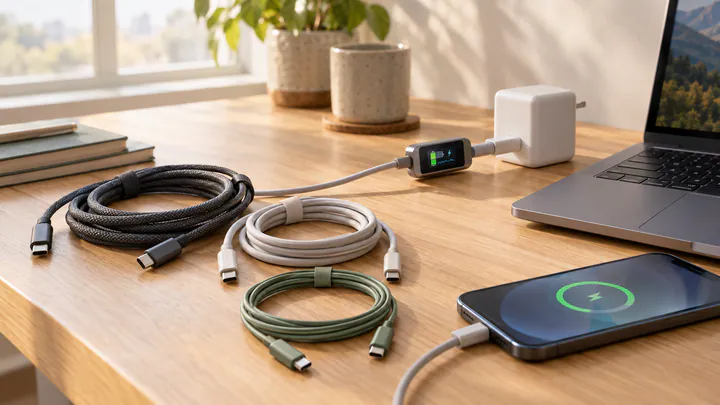
When a USB-C device charges slowly, the cause is usually a mismatch rather than a fault: the charger, the cable, the port and the device each have a power limit, and the whole chain runs at the lowest one. The same goes for file transfers, where a cable that only carries USB 2.0 data will throttle a fast external drive no matter what it is plugged into. This guide is for anyone whose laptop flags a slow charger, whose phone takes hours to fill, or whose drive copies at a crawl. It walks through finding the weak link by swapping one part at a time, then explains which markings to look for so the next cable or charger you buy is the right one.
If your device does not charge at all, the port is loose or visibly damaged, or the battery is bulging, a new cable will not help. Stop using it and take it to a repair shop or the manufacturer.
One connector, many standards
USB-C is only the shape of the plug. Behind that oval connector sits a range of very different capabilities: a cheap cable bundled with earbuds and a $50 Thunderbolt cable fit the same port, but one may carry 15 W and USB 2.0 data while the other carries 100 W and 40 Gbps.
Fast charging over USB-C mostly runs on USB Power Delivery (USB PD), a protocol in which the charger and the device negotiate a voltage and current before power flows. Power in watts is volts multiplied by amps, so a charger supplying 20 V at 3 A delivers 60 W (20 × 3). If either side, or the cable between them, cannot handle a higher level, the negotiation settles on something lower. Nothing breaks and nothing warns you, except perhaps a laptop notification or a charge bar that barely moves.
Some phones also use an extension called Programmable Power Supply (PPS), which lets the device fine-tune voltage in small steps. Certain Android phones only reach their top charging speed on a PPS-capable charger and fall back to a slower mode on an ordinary USB PD charger of the same wattage.
Check the charger: wattage and USB Power Delivery
Start with the charger because it is the most common bottleneck. Its maximum output is printed in small type on the casing, usually as a list of voltage and current pairs such as 5V⎓3A, 9V⎓3A, 15V⎓3A, 20V⎓3.25A. Multiply the highest pair to get the top wattage: 20 × 3.25 = 65 W.
Things that commonly go wrong at the charger end:
- It is too small. A 20 W phone cube connected to a laptop will charge it slowly, or only hold the battery level steady while you work.
- It is not USB PD. Older USB-A chargers with an A-to-C cable usually top out at a few watts to around 12 W for laptops and most phones, whatever the device supports.
- It is shared. Multi-port chargers split their total output. A 100 W two-port charger might give 100 W to one device alone, but drop to something like 65 W and 30 W when a second device is plugged in. The split is printed on the charger or in its manual, and it varies by model.
- It sits behind a hub or dock. Pass-through charging hubs keep some power for themselves, so a 100 W charger feeding a hub may deliver noticeably less to the laptop.
| Device | Charger that usually reaches full speed |
|---|---|
| Phones and small earbuds cases | Around 20–30 W (some phones support more) |
| Tablets | Around 20–45 W |
| Thin and light laptops | Around 45–65 W |
| Larger laptops, especially with dedicated graphics | 100 W or more |
The best guide is the wattage of the charger that came with your device, or the figure listed in its specifications. Using a bigger charger than needed is safe with USB PD, because the device only draws what it negotiates.
Check the cable: 60 W versus 100 W and 240 W ratings
Most basic USB-C to USB-C cables are rated for 3 A, which means a ceiling of 60 W at 20 V. To carry more, a cable must be rated for 5 A and contain an e-marker, a small chip in the plug that tells the charger the cable can handle the higher current. Without it, a 100 W charger will cap itself at 60 W.
| Cable type | Current | Maximum power |
|---|---|---|
| Standard USB-C cable | 3 A | 60 W (20 V × 3 A) |
| E-marked 5 A cable | 5 A | 100 W (20 V × 5 A) |
| E-marked 5 A cable for USB PD 3.1 Extended Power Range | 5 A | 240 W (48 V × 5 A) |
For a phone, a 60 W cable is plenty. For a 65 W laptop, a 60 W cable costs you only a few watts. For a laptop that ships with a 96 W, 100 W or larger charger, a 3 A cable is a real limit and a frequent cause of the "slow charger" warning.
Cables also wear out. A cable that has been bent hard at the plug for months can develop an intermittent connection that drops charging to a low fallback rate. If wiggling the plug changes the charge indicator, retire the cable.
Worked example: why a few watts matter on a laptop
Illustratively, say your laptop draws a hypothetical 25 W while you work, and its battery holds 70 Wh. On a setup that only delivers 30 W, about 5 W is left over for the battery (30 − 25), so filling it from empty would take around 14 hours (70 ÷ 5). Swap to a 65 W charger and a cable rated for it, and about 40 W goes to the battery (65 − 25), so the same charge takes roughly 1.75 hours (70 ÷ 40). Real charging slows near the top of the battery, so both figures are rough, but the gap shows why an underpowered link feels like no charging at all.
Check the port and the device
Even with the right charger and cable, the device itself sets the final limit.
- Not every port charges. On many laptops only some USB-C ports accept power, and some laptops charge faster from one particular port. Look for a small lightning bolt or battery icon next to the port, or check the specifications page for your model.
- Lint in the port. Pocket lint packed into a phone port stops the plug from seating fully. With the device switched off, gently ease it out with a wooden or plastic toothpick, never metal.
- Heat. Phones and laptops slow charging when warm. Charging under a pillow, in direct sun or during a demanding game can halve the rate or pause it.
- Battery-care settings. Many phones and laptops deliberately slow down above roughly 80% or hold the battery below full to reduce wear. That is a setting, not a fault.
- Heavy use while charging. A laptop running at full load can draw nearly as much as a mid-size charger supplies, leaving little for the battery.
The swap test: find the bottleneck in about an hour
Change one part at a time and measure each time. Changing two things at once tells you nothing about which one was the problem.
- Pick a way to measure. The most direct tool is an inline USB-C power meter, a small dongle that sits between cable and device and shows live watts; they cost roughly $15–$30. Without one, note the battery percentage, charge for exactly 20 minutes with the device idle and the screen off, and note it again. On a Mac, the Power section of System Information shows the connected charger's wattage; many Windows laptops show it in the manufacturer's support app.
- Record a baseline with your usual charger, cable and port. Start from a similar battery level each time, ideally between 20% and 50%, where charging runs at its fastest.
- Swap the charger only. Use a USB PD charger at or above your device's rated wattage. If the rate jumps, the old charger was the limit.
- Swap the cable only. Go back to the original charger and use a cable you know is rated 100 W or 240 W. If the rate jumps, the cable was the limit.
- Swap the port. On a laptop, try every USB-C port. On a phone, clean the port and test again.
- Remove the extras. Take out any hub, dock, extension cable or adapter and plug straight into the wall. Unplug other devices from a shared multi-port charger.
- Check the device. If nothing changes the rate, look at temperature, battery-care settings and background load. If a known-good charger and cable still charge slowly in a cool, idle device, the port or battery may need a technician.
Data speed: why some USB-C cables copy files slowly
Charging and data are separate capabilities, and a cable can be good at one and poor at the other. Many charge-only and bundled cables carry data at USB 2.0 speed, 480 Mbps, because they lack the extra wire pairs that faster modes need. Plug a fast external SSD into one of those and it behaves like an old thumb drive.
The common data tiers over USB-C are:
- USB 2.0: 480 Mbps
- USB 5Gbps (formerly USB 3.2 Gen 1): 5 Gbps
- USB 10Gbps (USB 3.2 Gen 2): 10 Gbps
- USB 20Gbps (USB 3.2 Gen 2x2): 20 Gbps, supported on fewer computers
- USB4 and Thunderbolt 3 and 4: 40 Gbps, with newer versions going higher
Illustrative example: copying 50 GB
Over a USB 2.0 link, real-world copies often run around 40 MB/s. At that pace, 50 GB (50,000 MB) takes about 1,250 seconds (50,000 ÷ 40), or roughly 21 minutes. Over a 10 Gbps link with a fast SSD at a hypothetical 900 MB/s, the same copy takes about 56 seconds (50,000 ÷ 900). Your numbers will vary with the drive and the files, but the order-of-magnitude gap is typical.
As with charging, the slowest part sets the speed. Check three things:
- The computer's port. Many phones, particularly lower-priced models, have USB-C ports that run at USB 2.0 speed, and some laptops mix fast and slow USB-C ports. On a Mac, the USB section of System Information lists each connection's speed; on Windows, the drive maker's utility or the laptop's specifications page usually tells you.
- The drive or enclosure. A 10 Gbps SSD in a 5 Gbps enclosure runs at 5 Gbps.
- The cable length. Longer passive cables often cannot hold the top data speeds. Full-speed 40 Gbps cables longer than about a meter are usually active cables with electronics inside, and they cost more.
What to buy so it doesn't happen again
Buy by the markings, not by the look of the plug. The USB Implementers Forum, the industry group that maintains the USB standards, uses certification logos on packaging and sometimes on the plug itself that show wattage (60W or 240W) and data speed (for example USB 10Gbps or USB 40Gbps). Thunderbolt and USB4 cables carry their own labels. A cable without any markings should be treated as a 60 W, USB 2.0 cable until proven otherwise.
Matching the purchase to the job:
- Charging a phone or tablet: a 20–30 W USB PD charger (with PPS if your phone's maker says it needs it) and any decent 60 W cable. Roughly $15–$30 for the charger, less for the cable.
- Charging a laptop: a USB PD charger at or above the laptop's original wattage and a cable rated 100 W or 240 W. A 240 W cable costs little more than a 100 W one and covers future devices, so it is the one we would pick.
- Fast file transfers: a short cable rated for the speed your drive and port support, such as 10 Gbps for most portable SSDs.
- One cable for everything: a Thunderbolt 4 or USB4 cable rated for 100 W or more carries fast data and laptop charging, but expect to pay roughly $25–$60 and keep it under a meter if you want full speed without paying for an active cable.
- A multi-port charger: check the per-port wattage when several devices are plugged in, not just the headline total.
Label your cables once you know what they do. A strip of colored tape on the plug of each 240 W or high-speed cable saves you repeating the swap test the next time a charge bar stalls.